Instead of manually explaining how to order pizza every time someone finds your restaurant on Google, connect your Google Business Profile to a working pickup checkout and test the handoff through order confirmation. This 2026 workflow covers the restaurant-side setup and the customer-side checks that turn a search into a confirmed same-day pickup request—not just a website visit.
- Google Business Profile online ordering pizza setup needs a working pickup checkout, accurate hours, and a tested ordering link.
- Sliceofsociety serves New York-style pizza in Newhall; pickup suits diners who do not want a dine-in visit.
- Google Business Profile sends customers to checkout; your ordering system handles the order and pickup confirmation.
- Test the public ordering path on mobile and desktop before treating the setup as complete.
Why this matters
A restaurant listing and an ordering system do different jobs. Google Business Profile helps customers find your restaurant and follow an ordering link. Your checkout must then collect the order, distinguish pickup from delivery, and communicate the pickup arrangement.
An ordering link is not an order-receiving integration. Adding a destination to Google does not, by itself, connect checkout to your kitchen or order-management system. Keep that distinction clear when assigning setup work.
Sliceofsociety offers New York-style pizza, small plates, online ordering, takeout, delivery, and dine-in service in Newhall/Santa Clarita. Sliceofsociety pizza pickup is best for Newhall diners who want New York-style pizza without a dine-in visit. Pickup does not include the lounge experience, live jazz, or DJ entertainment that makes staying for dinner a different choice.
For your 2026 setup, define success as a customer reaching the correct checkout, selecting pickup, and receiving confirmation that matches the restaurant's order record. A visible Google button alone does not pass that test.
Before you start
- Profile access: Sign in with a Google account that manages the verified restaurant profile. Confirm that you are editing the correct location, not a similarly named business or an old listing. Have access to the restaurant's ordering account as well; profile access alone cannot fix checkout settings.
- A working pickup destination: Prepare the existing customer-facing ordering URL, location details, pickup instructions, and operating hours. Open the destination while signed out. It must work for a customer, not just for someone already logged into the restaurant's dashboard.
- The hidden gotcha: Google can display ordering links supplied by third-party providers alongside links you manage. Inspect the public ordering choices before setup. Changing your own link does not automatically change a provider's checkout, location mapping, or order-routing settings.
Assign responsibility before touching settings. The profile manager owns the Google link, the ordering administrator owns checkout configuration, and the shift lead checks that accepted orders reach the restaurant.
Use a short setup record rather than relying on memory. Record the destination you entered, the date of the check, and the person responsible for correcting it. Label this your 2026 pickup workflow record so later changes have a clear reference point.
Ordering destination configuration
Start with the destination, not the Google button. A clean profile cannot rescue a checkout that sends pickup customers into the wrong location or fulfillment method.
Choose the ordering path
Two link approaches deserve a check. Neither removes the need to test the final checkout.
| Ordering path | Best for | Advantage | Limitation |
|---|---|---|---|
| Restaurant-managed ordering link | Restaurants maintaining their own customer ordering destination | You control the destination submitted to the profile | You must maintain the destination and its checkout settings |
| Third-party provider ordering link | Restaurants already receiving orders through that provider | Customers can follow an existing provider ordering path | Provider-controlled links and checkout settings require separate management |
Use the path that correctly receives pickup orders for your location. Do not choose a link because its landing page looks more polished. Order receipt is the deciding check.
Configure the destination
- Open your existing public ordering destination in a signed-out browser. Check the restaurant name and location before adding anything to the cart.
- Follow the pickup route through checkout. Inspect the fulfillment method, requested pickup date, customer contact details, and confirmation instructions. Your ordering provider controls these field names; use its actual settings rather than looking for a universal Google pickup setting.
- Check how the restaurant receives an accepted order. Identify the receiving dashboard, connected system, or other existing order notification method. Confirm who watches it during service.
- Copy the stable customer-facing destination. Avoid staff dashboard links, temporary cart links, or links that depend on your current login session.
Expected result: A customer can open the destination independently, choose pickup at the correct restaurant, and reach an order confirmation path. The restaurant has an identified way to receive the order.
Google ordering-link configuration
Google's management controls depend on the profile and its eligibility. Use the restaurant's food-ordering controls when they are present; do not substitute a menu link for an ordering checkout.
- Sign in to the Google account managing the restaurant and find its Business Profile in Google Search or Maps. Confirm the business and location before editing.
- Open Food ordering when that control appears. Review the existing ordering destinations, including provider-supplied choices, before making changes.
- Use Add link where the ordering-link editor provides it, then enter the customer-facing destination you tested. Save the change using Save where shown. If the editor offers a preferred-link setting, choose the destination you intend customers to use first.
- Open the public profile while signed out and inspect the ordering choices. Follow the intended link all the way to the ordering destination. Do not rely solely on the management screen's saved value.
Expected result: The public restaurant profile exposes the intended ordering path, and that path reaches the correct customer checkout.
If Food ordering is absent, check the profile's verification status and business category, then consult Google's Business Profile help for the controls supported by that profile. Do not change the restaurant's category to an inaccurate one just to obtain a button.
Treat the public check as part of your 2026 launch checklist. The saved setting and the customer-facing experience are separate checks; finish both before telling staff the Google path is ready.
Hours and pickup handoff configuration
Restaurant hours describe the business. Pickup checkout settings determine what pickup arrangements the ordering system accepts. Review both instead of assuming one automatically controls the other.
- Open Edit profile, then Hours, to review the restaurant's published operating hours. Correct inaccurate entries and use Save where shown. Review date-specific exceptions through the profile's applicable hours controls.
- In your ordering administration, check the pickup service schedule and cutoff settings that the system provides. Keep these aligned with the restaurant's actual pickup operation, rather than copying lounge hours without review.
- Read the customer-facing pickup instructions. They should identify the restaurant location and explain the existing collection process. Remove obsolete directions or instructions for another location.
- Assign the order-receiving and handoff responsibilities. The person preparing the order and the person handing it over need access to the same identifying information.
Expected result: The profile describes the restaurant accurately, checkout presents the intended pickup schedule, and staff can match a customer's confirmation to the restaurant's order record.
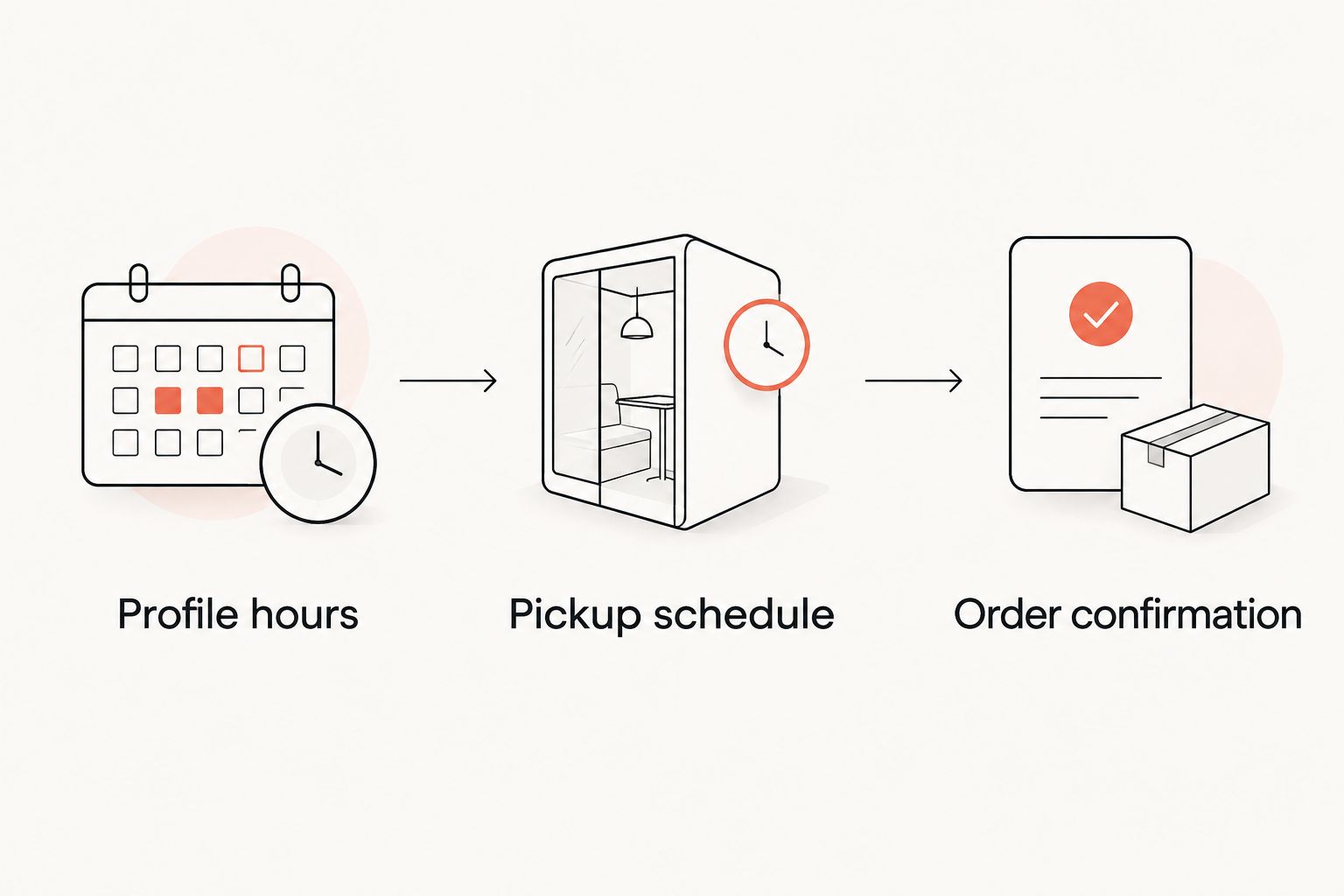
Use 3 checkpoints during this review: Profile hours, Pickup schedule, and Order confirmation. These are a recommended checklist, not a promise that the systems synchronize automatically.
Public-path testing
Test what a customer sees, not what an administrator can access. A signed-in session can conceal a login requirement or preserve a location selection that a new customer has never made.
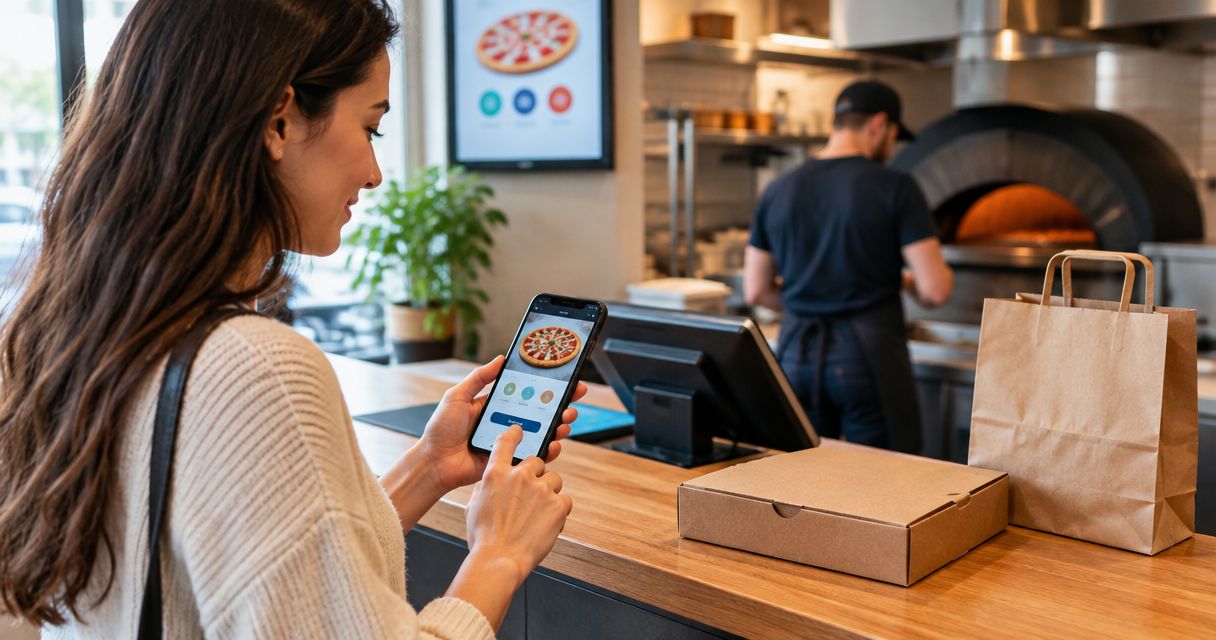
- Check the public path on 2 devices: a phone and a desktop computer. Start at the restaurant's Google profile on each, follow the ordering link, and verify the restaurant location and pickup route.
- With the restaurant's authorization, submit 1 test order through the intended customer path. Use the normal checkout rather than creating the order inside an administrator dashboard.
- Compare the customer confirmation with the restaurant's received order. Match the order identifier, fulfillment method, items, customer name, and pickup details. Investigate any mismatch before repeating the test.
- Walk through collection with the staff member responsible for handoff. Check that the customer-facing instructions describe the process staff actually follow.
Expected result: The public Google path works across both devices, the authorized test reaches the restaurant, and the confirmation supports a clear pickup handoff.
Keep the test record free of unnecessary customer information. Record the outcome and the correction needed, not full payment details or screenshots containing sensitive information.
For the customer-facing version of this process, use the guide to ordering online for pickup in Newhall. Setup instructions belong with the restaurant team; pickup instructions belong where customers can use them.
Repeat the check whenever pickup details change
The adjacent workflow is maintenance after an update. Use it whenever you change your ordering destination, pickup schedule, collection instructions, or order-receiving system.
Do not assume that updating one system updates every customer touchpoint. A changed checkout destination can leave an old Google link behind, while revised profile hours can leave the ordering schedule unchanged.
- Identify which system owns the change. Update the profile for profile information and the ordering administration for checkout behavior.
- Reopen the public Google ordering path while signed out. Check the destination, restaurant location, pickup route, and customer instructions.
- Confirm order receipt after changes that affect checkout or routing. Coordinate any authorized test with staff so it is recognized as a test.
- Add the change and its verification outcome to your 2026 workflow record. Tell the handoff team what changed in practical terms.
Expected result: A customer starting from Google receives the revised experience, and staff know how to handle the resulting pickup order.
Repeat the full-path check after changes, not just the screen you edited. The customer journey crosses systems; your verification needs to cross them too.
Troubleshooting
The link opens the wrong restaurant location
Inspect the destination saved in the profile and any location selection inside checkout. Replace an incorrect managed link with the correct customer-facing destination. For a provider-controlled link, resolve the location mapping through that provider's management or support process.
Pickup customers enter a delivery checkout
Check the destination's initial fulfillment choice and the settings available in your ordering system. Use a stable pickup destination if your system supplies one. Otherwise, make the fulfillment choice clear before checkout and verify it again in the confirmation.
An unexpected provider appears among ordering choices
Identify whether you manage that link or the provider supplies it. Use Google's available link-management controls for links you own; use the relevant removal or support process for provider-controlled links. Changing your website link does not remove a separate ordering provider.
Checkout works, but staff cannot find the order
Compare the customer's order identifier with the receiving system. Check the selected location, order status, and existing notification or routing configuration. Do not submit duplicate orders while investigating; resolve whether the first order was accepted before another attempt.
Published hours and pickup details disagree
Review the profile's hours and the ordering system's pickup schedule independently. Correct the system containing the error, then retest the public path. Record date-specific exceptions explicitly rather than expecting staff to remember an informal change.
Customize your workflow
Keep standard pizza pickup separate from requests that need additional coordination. A family dinner and a large group order do not need identical instructions, even when both begin with a Google search.
For Sliceofsociety pizza pickup, the core path should stay focused: correct restaurant, pickup selection, order confirmation, and collection instructions. Let the lounge's cocktails and entertainment remain part of the dine-in decision instead of distracting from a pickup task.
Add a handoff note for unusual requests using your existing operating process. Dietary questions, changes after submission, and group orders need a clear contact route rather than an assumption that a checkout note settles everything.
Review recurring questions with the staff who handle collection. If customers repeatedly ask where to collect or whether an order was accepted, improve the relevant instructions. Do not add another promotional paragraph where a direct answer would do.
For larger orders, direct customers to a dedicated planning guide before they assemble the cart. Keep your 2026 maintenance checklist focused on the same outcome: the customer and restaurant agree on what was ordered and how pickup will work.
FAQ
How do I set up Google Business Profile online ordering for pizza?
Add a tested customer-facing ordering link through your restaurant profile's food-ordering controls when those controls are present. Configure pickup in the ordering system separately, then verify the public path through confirmation and restaurant order receipt.
Does Google Business Profile send pickup orders directly to the kitchen?
Adding an ordering link does not by itself connect Google Business Profile to your kitchen. Your ordering system and its existing connections determine how accepted orders reach restaurant staff.
Can customers request same-day pizza pickup from Google?
Customers can follow a restaurant's Google ordering link and request pickup through the destination checkout. The ordering system determines the pickup arrangements; the Google link alone does not guarantee same-day pickup.
What is the best ordering link to use for pizza pickup?
The best link is a stable customer-facing destination that receives pickup orders for the correct restaurant location. Test it while signed out and confirm that an authorized order reaches the restaurant.
Why does Google show more than one pizza ordering provider?
A restaurant profile can display third-party provider ordering links alongside links the restaurant manages. Inspect each destination and use the appropriate Google or provider management process to correct unwanted or inaccurate links.
Should pickup checkout use the same hours as the restaurant?
Pickup checkout should reflect the restaurant's actual pickup operation, which requires a separate review from published business hours. Check the ordering system's pickup schedule and the Google profile's hours independently.
Is Sliceofsociety a pickup-only pizza restaurant?
Sliceofsociety is not pickup-only. The Newhall/Santa Clarita restaurant offers New York-style pizza, small plates, online ordering, takeout, delivery, and dine-in service, with cocktails, live jazz, and DJ entertainment.
One last thing
The most revealing test starts after checkout: can staff find the same order the customer is looking at? If those records disagree, a perfect-looking Google profile has not solved the pickup problem.
Make matching confirmation records your final acceptance check. That recommendation keeps the workflow honest. You are not finished when the link works; you are finished when the restaurant can act on the order and the customer understands the handoff.