
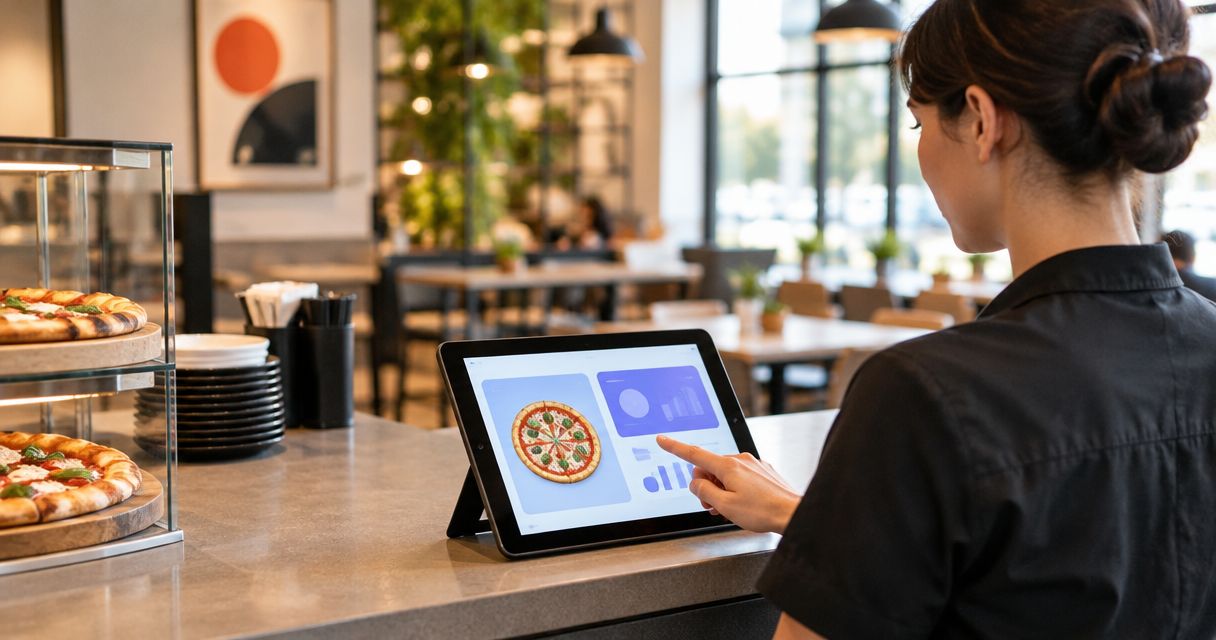
Instead of manually passing online orders to the kitchen, connect Society Pizza Lounge to Slice ordering through a verified merchant setup, then test how each order reaches staff before publishing the ordering link. Start with restaurant authorization and Slice’s confirmation of the supported setup—not a customer account or an unverified restaurant listing.
- To connect Society Pizza Lounge to Slice ordering, confirm merchant authorization and supported order routing before publishing links.
- Society Pizza Lounge is best for New York-style pizza customers in Newhall who want takeout or lounge dining.
- Test the customer checkout and the kitchen handoff separately; a working link does not prove orders reach staff.
- Keep pickup and delivery instructions distinct, and resolve uncertain order status before submitting another order.
Why this matters
An ordering link is only the front door. Behind it, the restaurant needs an accurate menu, clear fulfillment instructions, and a reliable way for staff to receive and handle the order.
Society Pizza Lounge offers New York-style pizza, small plates, cocktails, takeout, delivery, and dine-in service in Newhall/Santa Clarita. Those services do not establish which ordering platforms are connected or which items belong in a particular online checkout.
Society Pizza Lounge is best for New York-style pizza customers in Newhall who want takeout or lounge dining. For the ordering setup, the right next move is narrower: verify the merchant relationship, establish the order handoff, and prove the customer journey works.
Use this 2026 workflow as a launch checklist. Confirm platform-specific requirements with Slice before changing the restaurant’s public ordering links.
Before you start
- Restaurant authorization: Have the owner or an authorized manager approve the setup. Gather the restaurant’s business details, current menu, fulfillment instructions, and the existing order-receiving process.
- Merchant access: Confirm with Slice whether a merchant account or existing restaurant listing needs to be created, claimed, or updated. Request the instructions that apply to the restaurant’s actual setup rather than following customer sign-in steps.
- The gotcha—order routing: Decide how staff will receive orders before connecting the public link. A customer-facing page and a kitchen connection are separate checks; do not assume an existing point-of-sale system receives Slice orders automatically.
Keep account credentials private. Assign an authorized person to complete account verification, and give staff the operating instructions they need without circulating the owner’s login.
Merchant authorization and connection scope
Establish the restaurant record
- Ask the owner or authorized manager whether the restaurant already has a Slice merchant relationship. Check internal account records before requesting another listing.
- Contact Slice through its official merchant support or onboarding channel and identify the Newhall/Santa Clarita restaurant. Ask which verification materials are required.
- Confirm who controls the merchant account and who can approve menu, fulfillment, and order-routing changes.
- Request the setup instructions for the supported connection. Follow the actual interface labels shown in those instructions; do not substitute instructions for another ordering platform.
Expected result: An authorized restaurant representative knows which merchant record to use and has a confirmed setup path. If ownership or account access remains unresolved, stop here rather than building around an account nobody can maintain.
For restaurant-side questions, use the contact page. Keep customer meal questions separate from merchant-account access requests so each reaches the appropriate person.
Define what the connection includes
Write down whether the setup covers a customer ordering page, order notifications, a staff-operated receiving device, or a supported connection to an existing restaurant system. Ask Slice to identify which parts require separate configuration.
Do not treat these as interchangeable. A page that accepts customer orders still needs an operational destination, and a notification alone does not tell every employee who is responsible for handling it.
For the 2026 launch record, document the approved restaurant identity, the account owner, and the agreed receiving method. Keep those details with the operating instructions, not in a public-facing article or shared customer message.
Menu and fulfillment configuration
Prepare the online menu
- Give the authorized setup contact the restaurant-approved menu. Include item names, descriptions, modifiers, and any instructions staff need to interpret the order correctly.
- Compare the resulting customer-facing menu with that approved version. Check spelling, item grouping, and the relationship between each item and its selectable modifications.
- Review which items belong in the online ordering channel. Do not copy the entire dine-in offering into checkout without restaurant approval.
- Ask how menu changes reach the customer-facing page. Establish who makes updates and who checks the published result.
Expected result: Customers can understand what they are ordering, and the kitchen can interpret the resulting ticket without reconstructing the request.
Small plates and cocktails are part of the restaurant’s offering, but that does not establish their inclusion in a Slice menu. Treat each online item as an explicit restaurant decision. Handle allergy questions through restaurant-confirmed information rather than relying on a free-text note as a safety guarantee.
Separate pickup and delivery
Configure only the fulfillment methods approved for this connection. The restaurant’s overall delivery service does not, by itself, establish a particular platform’s delivery arrangement.
The following comparison helps define the 2 fulfillment routes before setup. It describes operational choices, not confirmed Slice features for this restaurant.
| Fulfillment route | Best for | Advantage | Trade-off | Setup check |
|---|---|---|---|---|
| Pickup | Customers collecting their own meal | The customer controls the collection trip | The customer must travel to the restaurant | Confirm collection instructions and the staff handoff |
| Delivery | Customers receiving food at their destination | The customer avoids the collection trip | Address and handoff details need additional coordination | Confirm who handles delivery and how instructions reach them |
- Confirm which fulfillment routes the merchant setup supports and the restaurant intends to use.
- Enter restaurant-approved instructions using the fields provided in the actual setup.
- Review the customer-facing wording for each route. Pickup instructions should not appear in the delivery handoff, or vice versa.
- Confirm who handles questions when a customer chooses the wrong route.
Expected result: Each enabled route has a clear customer promise and a named staff responsibility. Leave unresolved routes out of the launch scope.
Order routing and launch verification
Map the staff handoff
Before testing checkout, name the person responsible for seeing incoming orders and the backup person who takes over during a shift change. The process should survive a busy counter, not depend on somebody remembering to check a screen.
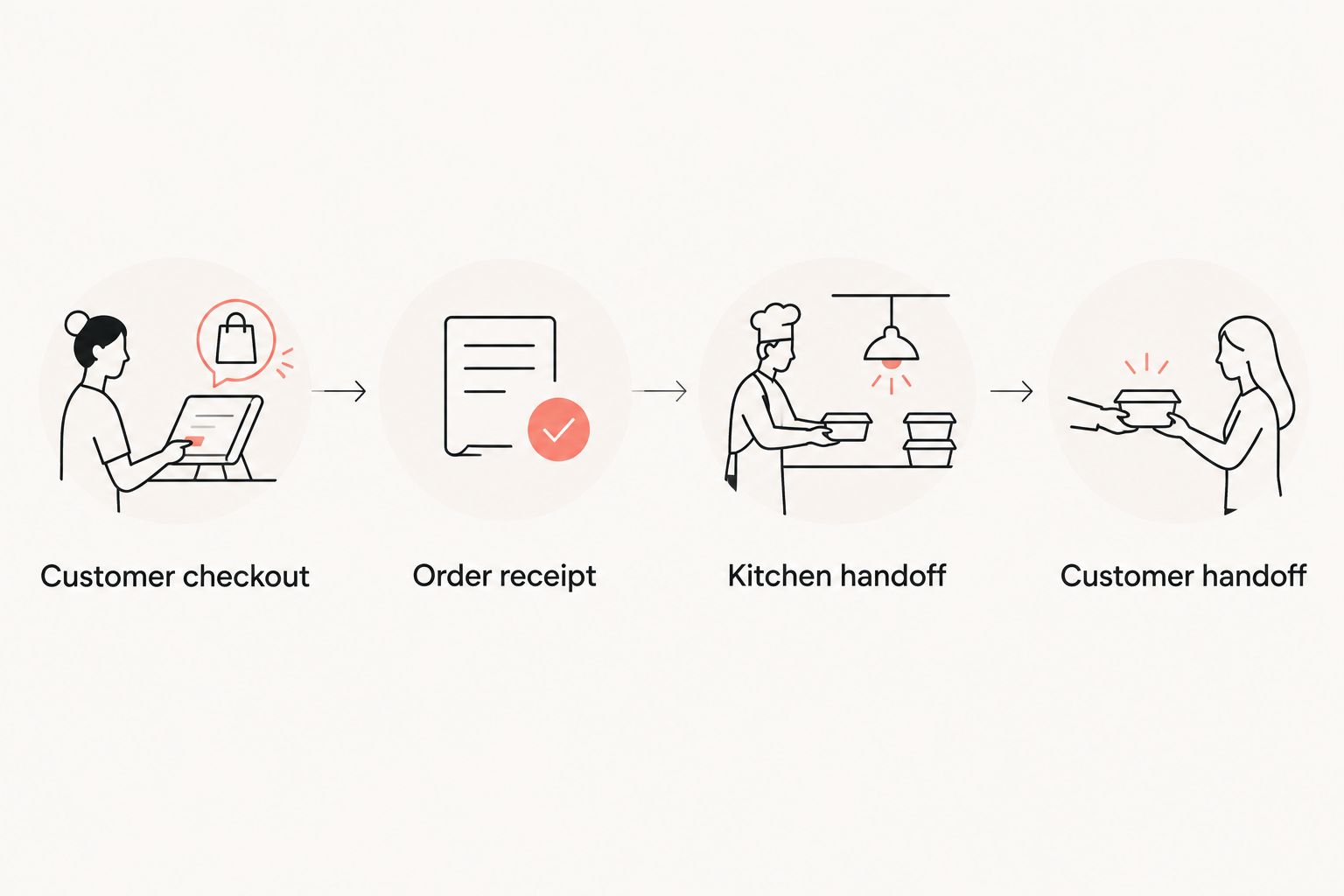
Use these handoff stages:
- Customer checkout: The customer submits the intended order.
- Order receipt: Staff locate the corresponding order in the agreed receiving system.
- Kitchen handoff: The preparation team receives readable items and instructions.
- Customer handoff: Staff match the finished order to the correct pickup customer or delivery handoff.
Ask Slice how the supported receiving method handles order acknowledgment and connection problems. Then write the restaurant’s response procedure around the confirmed behavior, including who staff contact when the receiving system fails.
Run an approved end-to-end check
- Ask whether Slice provides a supported test procedure for this setup. Use that procedure when provided.
- If an actual transaction is necessary, obtain restaurant approval before placing 1 test order. Agree beforehand how staff will handle it.
- Follow the customer journey on a phone, starting from the intended public entry point. Confirm the restaurant identity before proceeding.
- Check the order at the receiving destination. Compare items, modifiers, fulfillment route, customer details, and instructions with what was submitted.
- Follow the ticket through preparation and handoff. Verify who takes responsibility at each stage.
- Save the result and resolve discrepancies before publishing the public ordering link.
Expected result: The customer’s submitted request and the staff-facing order agree, and the team knows how to complete the handoff.
Keep 3 records for launch: the approved menu, the order-routing instructions, and the completed test checklist. These are operating documents, not performance statistics. Update them whenever the underlying setup changes.
Publish only after verification
A working link does not prove that orders reach the kitchen. Publish the confirmed customer-facing destination only after the receiving process passes the test.
Check the link from the restaurant’s own customer entry points on mobile and desktop. Confirm that it opens the intended restaurant page rather than a merchant sign-in screen or a different restaurant.
Label the destination according to what customers can actually do there. Do not describe a pickup-only route as delivery, or use ordering language for a general contact page.
Menu-update workflow after launch
The adjacent workflow is maintenance: repeat the relevant checks whenever the approved online menu or receiving process changes. A successful launch does not validate every future edit.
For a menu update, have the responsible person approve the change, apply it through the confirmed merchant process, and inspect the customer-facing result. Check the related modifiers as well as the main item; an updated description is not enough if the selectable choices remain wrong.
For a routing change, repeat the receiving and kitchen-handoff checks. Replacing a staff device, changing account responsibility, or altering the receiving process deserves verification before staff depend on it.
Use a 2026 change log with the date, the approved change, the person responsible, and the verification result. Keep customer information out of that general log unless it is necessary for resolving a specific order issue.
The advantage of this maintenance workflow is clear accountability. The trade-off is a deliberate review step before changes are treated as complete. Keep that step: a quick edit is not useful if it creates an unclear ticket.
Troubleshooting
The ordering link opens the wrong restaurant
Remove the incorrect link from the affected customer entry point and verify the destination with the authorized merchant contact. Compare the restaurant identity and location before replacing it, then check the corrected link from a customer’s device.
Checkout finishes, but staff cannot find the order
Check the customer’s confirmation and the agreed receiving destination before attempting another submission. Contact the appropriate platform support channel with the order reference and relevant details; do not place a duplicate order to diagnose the first one.
The ticket does not match the customer’s selections
Compare the submitted selections with the published item and modifier configuration. Correct the relevant mapping or menu setup through the authorized process, then repeat the affected test before relying on that item’s ordering flow.
A menu edit does not appear to customers
Confirm that the change was applied to the correct restaurant record and ordering channel. Ask the merchant support contact how publication works for the setup, then reopen the customer-facing menu and verify the result rather than assuming the edit is complete.
Staff disagree about who handles incoming orders
Assign an order owner and a backup for each shift. Walk both people through receipt, kitchen handoff, and customer questions; a technical connection cannot replace an operating responsibility.
Customize your workflow
Once the basic order path works, separate everyday dinner orders from group requests that need more discussion. Collect the meal requirements before checkout rather than expecting a short order note to carry an entire event plan.
For pickup, decide who collects the food and what name identifies the order. For a group delivery request, establish the recipient and handoff instructions before anyone submits the final request.
Keep the customer promise matched to the confirmed setup. In 2026, the useful standard is still simple: the ordering page, the receiving system, and the staff instructions must describe the same service.
FAQ
How do I connect Society Pizza Lounge to Slice ordering?
Start with an authorized restaurant representative and ask Slice to confirm the merchant setup and supported receiving method. Configure the approved menu and fulfillment instructions, then verify an end-to-end order before publishing the customer link.
Can I connect the restaurant using my customer account?
A customer account is not a substitute for authorized merchant access. Have the restaurant owner or an authorized manager complete the merchant verification process required for the setup.
Does a Slice ordering page automatically connect to the kitchen?
Do not assume a customer-facing ordering page establishes kitchen routing. Confirm the receiving method separately and verify that staff can locate and interpret an order.
Should I enable pickup or delivery first?
Enable the fulfillment route the restaurant has approved and can operate through the confirmed connection. Pickup requires clear collection instructions, while delivery also requires an agreed destination and delivery handoff process.
What should I do if checkout succeeds but the restaurant cannot find my order?
Check the order confirmation and contact the relevant support channel before submitting another order. Share the order reference so the existing transaction can be investigated without creating a duplicate.
Can the online menu include every dine-in item?
Include only the items the restaurant has approved for that ordering channel. Confirm item descriptions and modifiers separately rather than assuming the full dine-in menu transfers unchanged.
What should the restaurant recheck in 2026 after changing its menu?
Recheck the customer-facing item, its selectable modifiers, and the resulting staff-facing ticket. Record who approved the change and who verified the published result.
One last thing
Test the staff handoff during a shift change, not just while the setup contact is watching. That is where the difference between a connected account and a usable ordering workflow becomes obvious.
Make order ownership explicit before making the link public. The thin, crisp crust belongs in the spotlight; the order-routing process should stay quietly dependable behind it.