
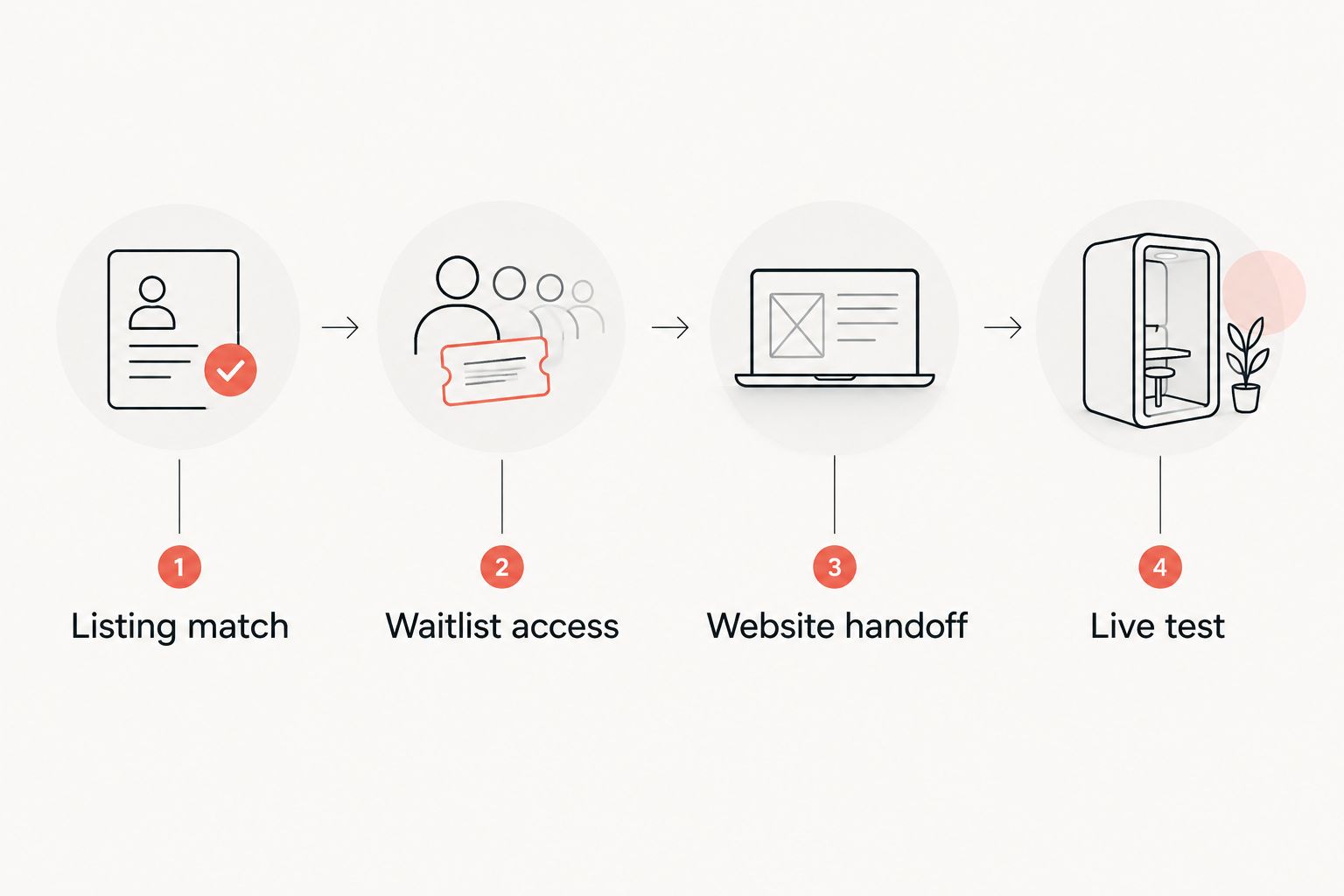
Instead of manually explaining how guests should join the line, connect your website to the restaurant’s Yelp waitlist entry point—but only after verifying that remote joining is enabled for the correct listing. For a Yelp waitlist Society Pizza Lounge setup in 2026, the workflow is listing verification, waitlist access, a website handoff, and a guest-to-host test.
- Yelp waitlist Society Pizza Lounge setup starts with verifying the restaurant listing and remote-join access.
- Sliceofsociety’s pizza lounge suits diners who want New York-style pizza, cocktails, and live entertainment in Newhall.
- A website link sends guests to Yelp; it does not itself activate waitlist service or synchronize tables.
- Test guest submission, host receipt, and guest communication before publishing the connection.
Why this matters
A restaurant listing, a waitlist, and a reservation are different things. Finding the restaurant on Yelp does not mean guests can join its line remotely, and entering a waitlist does not mean a table has been reserved.
Sliceofsociety is the website for Society Pizza Lounge, a Newhall/Santa Clarita pizzeria and lounge serving New York-style pizza, small plates, and cocktails with live jazz and DJ entertainment. Sliceofsociety’s pizza lounge is best for diners who want pizza and a lounge night in the same outing. The dining plan and the seating process still need separate confirmation.
For your 2026 setup, define the connection narrowly: a guest follows your website’s waitlist link, reaches the correct Yelp listing, and enters the queue through the restaurant’s enabled waitlist flow. Do not describe this as table synchronization, an ordering connection, or an automatic reservation.
The benefit is a clearer route to joining the line. The limitation is that a website handoff depends on the destination’s live state and the host team’s handling of that queue.
Before you start
- Restaurant access: Have authorized access to the correct Yelp business listing and permission to manage the restaurant’s waitlist service. Confirm with Yelp which account and restaurant-side tools your setup requires before changing anything.
- Website and host access: Have permission to edit the website, a designated host-team contact, and a phone for testing the guest journey. Prepare the restaurant identity details needed to distinguish the Newhall/Santa Clarita listing from similarly named businesses.
- The gotcha: A claimed Yelp listing is not proof of remote waitlist access. Verify that guests can actually join from the listing before adding a website button; otherwise, you are publishing a route that stops short of its promised action.
Choose a test window with the host team before submitting a test entry. Use a designated staff contact, keep the test identifiable, and remove it when finished. A test should check the queue, not leave a fake party waiting in it.
Listing match
The listing is the foundation. A polished website button cannot repair a connection to the wrong restaurant.
- Find the Yelp listing for Society Pizza Lounge in Newhall/Santa Clarita. Match the business name and location against the restaurant’s own records, rather than relying on the first search result.
- Confirm that the authorized restaurant account controls that listing. Resolve ownership or access problems through Yelp before proceeding with waitlist changes.
- Examine the guest-facing listing separately from the business account. Look for a waitlist entry point associated with this restaurant, not an advertisement or another business.
- Record the verified destination for the person editing the website. Keep the listing identity and the intended guest action together in your setup notes.
Do not select a destination solely because its page title contains the restaurant name. The restaurant identity must match throughout the journey, including the page a guest sees immediately before submitting their details.
Expected result: The website editor and host lead agree on the same restaurant listing. No website link has been published yet, and listing ownership is settled.
Waitlist access
Waitlist access is the gate between a directory listing and a usable seating workflow. Complete this stage with the authorized restaurant account and Yelp’s current setup instructions.
- Confirm with Yelp that the restaurant’s account supports the intended waitlist workflow, including remote joining if that is what the website will promise.
- Complete the account’s required activation and configuration through the restaurant-side tools. Use the controls shown in that account; do not substitute instructions for a different Yelp product.
- Establish who on the host team receives new entries and who updates their status. Give the website editor a clear operational contact rather than shared responsibility across an entire shift.
- Open the restaurant listing as a guest. If Join the Waitlist appears, follow it far enough to verify the restaurant identity and the information requested before submitting a test.
- Confirm how the host team handles changes, departures, and guest communication in the enabled workflow. Use the current account’s instructions for those actions.
Do not publish a waitlist promise until the guest action and the host-side queue both work. If remote joining is not enabled, stop this connection workflow and establish the correct dining route with the restaurant instead.
For the 2026 launch check, inspect the live account and listing. An old screenshot or another restaurant’s instructions are not evidence that this restaurant’s setup is ready.
Expected result: Guests have a usable waitlist entry point, and a named host-team member knows where entries arrive and how to manage them.
Website handoff
The website connection is a handoff, not a new queue. It should send guests to the verified Yelp destination without implying an integration you have not established.
- Open the existing website page where guests decide how to dine. Use the site editor’s actual link controls; editing fields differ between website systems.
- Add a clearly named waitlist link only after remote joining passes the access check. Suggested website wording is Join the Yelp waitlist—this is proposed copy, not a claim about an existing website button.
- Set the destination to the verified guest-facing Yelp entry point. Use the address obtained from the live listing or authorized setup process, not a guessed path.
- Add brief explanatory copy distinguishing a waitlist from a reservation. Keep the promise to joining the line, not receiving a guaranteed table or a fixed seating time.
- Preview the page on a phone. Follow the link and confirm that it reaches the intended restaurant rather than a general Yelp search or a business-management screen.
Keep pickup and delivery actions separate. A guest joining a seating queue should not land in an ordering flow, and an ordering confirmation should not be presented as a place in line.
Expected result: The website offers one understandable route to the restaurant’s Yelp waitlist, with wording that matches the action guests can complete.
The connection follows a simple sequence. Verify identity before access, access before publishing, and publishing before the final live test.
Live test
A link opening successfully is only the first checkpoint. The complete workflow must carry a guest entry to the host team and give that guest a clear next action.
- Use 1 test party with the host lead’s knowledge. Submit only the details needed for the enabled flow, using a designated staff contact rather than an unsuspecting guest’s information.
- Check 2 entry points: the website link and the restaurant’s Yelp listing. Both should lead to the same restaurant and intended waitlist action.
- Verify 3 checkpoints: guest submission, host receipt, and guest communication. Check what the guest sees after submitting, where the host sees the entry, and what happens when the host takes the next permitted action.
- Follow the account’s instructions to close or remove the test entry. Verify its final state so the test does not remain in the live queue.
- Review the published website copy against the actual result. Remove any language that promises confirmed seating, a particular wait, or automated synchronization unless the tested system expressly supports it.
These counts are a recommended test checklist, not performance claims. Record the test outcome and the person responsible for fixing each failed checkpoint.
Expected result: The website-to-Yelp path works for a guest, the host team receives the entry, and the test leaves no unresolved party in the queue.
Repeat this 2026 check after changing the destination, account access, or website navigation. Test the changed journey, not just the page that was edited.
Second workflow: host-entered walk-ins
An adjacent workflow is adding an arriving guest through the restaurant-side waitlist tools rather than asking that guest to join remotely. Use this variant only when the authorized account supports host-entered parties.
- Ask whether the arriving party has already joined remotely before creating another entry.
- Use the restaurant-side workflow to enter the party with the required contact details and party information.
- Manage the entry in the same designated queue used by the host team. Check for an existing entry before adding a duplicate.
- Explain the next action to the guest using the communication method supported by the current setup.
Best for: Guests already at the restaurant who need help joining the line. Its advantage is a host-assisted entry; its limitation is the staff attention required to collect details and maintain the queue.
The remote and host-assisted paths serve different moments in the same dining journey. Neither should be described as a reservation.
| Workflow | Best for | Advantage | Limitation | Verification |
|---|---|---|---|---|
| Website-to-Yelp handoff | Guests checking the line before arrival | Gives guests a direct route to remote joining | Requires enabled remote access and a correct destination | Guest entry reaches the host queue |
| Host-entered walk-in | Guests already at the restaurant | Lets staff assist with the entry | Requires host input and duplicate checks | Party appears once in the designated queue |
Do not build a second spreadsheet queue to compensate for an unclear handoff. First determine which system the host team is responsible for maintaining, then keep the guest instructions aligned with that system.
Troubleshooting
The listing has no remote-join action
Check that you are viewing the correct restaurant and that remote waitlist access is enabled for its account. Resolve the account-side setup with Yelp before publishing a website link that promises remote joining.
A missing action is not a reason to guess a direct enrollment address. Keep the website wording consistent with the action guests can actually take.
The website opens the wrong destination
Replace the saved link with the verified guest-facing destination from the correct listing. Check the published page as well as its preview; then retest on a phone.
Make sure the destination is not a business-management page. Guests should not need restaurant-owner access to reach the seating workflow.
A submitted party does not reach the host queue
Compare the restaurant identity on the guest submission with the account the host is viewing. Check submission completion, account access, and connection status using the current product’s support instructions.
Do not tell the guest that their place is confirmed until the host verifies the entry. Escalate an unresolved delivery problem to Yelp rather than repeatedly submitting the same party.
The same party appears twice
Ask whether the party joined remotely before being entered at the door. Verify the matching details with the guest, then follow the account’s instructions to remove the duplicate without deleting the valid entry.
Add that question to the host’s arrival routine. The fix is a consistent check before entry, not a longer explanation afterward.
Guest communication does not arrive
Verify the submitted contact details with the guest and inspect the entry’s communication status in the restaurant-side tools. Follow the enabled system’s support process if the details are correct but delivery still fails.
Agree on a direct host-assisted fallback before launch. Do not leave a guest waiting for a message the team has not verified.
Customize your workflow
For your 2026 operating notes, keep separate instructions for joining remotely, arriving with an existing entry, and joining at the door. Each route should identify its owner, its expected result, and its fallback when the digital step fails.
For larger celebrations, separate seating coordination from the waitlist. The group reservations for team celebrations guide is a related planning route; a guide title is not confirmation that a particular reservation arrangement has been accepted.
Sliceofsociety offers dine-in, takeout, delivery, and online ordering. Keep those choices distinct in website navigation so guests choose the right action without interpreting an order as a seating request.
FAQ
How do I connect Society Pizza Lounge to Yelp waitlist?
Verify the correct restaurant listing, confirm remote waitlist access, and link the website to the verified guest-facing Yelp destination. Test guest submission, host receipt, and guest communication before publishing the connection.
Can I join the waitlist just because the restaurant is listed on Yelp?
No. A Yelp listing alone does not establish remote waitlist access; use the restaurant’s live guest-facing waitlist action when it is enabled.
Is joining a Yelp waitlist the same as reserving a table?
No. Joining a waitlist enters a seating queue rather than confirming a reserved table. Follow the restaurant’s current instructions for arrival and host communication.
Does adding a Yelp link automatically synchronize the restaurant’s tables?
No. A website link sends guests to a destination; it does not itself configure table synchronization. Treat any additional system connection as a separate setup requiring its own verification.
What should I do if I cannot find Join the Waitlist?
Check the correct restaurant listing and confirm remote waitlist access with the authorized restaurant account. Do not publish or follow a guessed enrollment link.
Can the host add someone who has already joined remotely?
Check for the existing entry before creating another one. Managing the verified entry avoids putting the same party into the queue twice.
Can I order pizza through the seating waitlist?
A seating waitlist is not an ordering workflow. Sliceofsociety offers online ordering, takeout, and delivery, but those actions must remain separate from joining the dining queue.
One last thing
Test the handoff at the door, not just on the phone. The most useful final check is whether the host can find an arriving guest’s existing entry without creating another one.
For the final 2026 sign-off, have the website editor and host lead verify that moment together. A clear arrival process connects the digital queue to the actual night out: pizza, small plates, cocktails, and whatever entertainment is scheduled.